Managing Your Disney+ Subscription and Profiles with Ease
Stepping into the magical world of Disney+ offers an unparalleled library of stories, from classic animations to epic Marvel sagas and the wonders of National Geographic. But to truly unlock and enjoy that magic without a hitch, it helps to master the practical side: Disney+ Subscription & Profile Management. This isn't just about paying a bill; it's about tailoring your viewing experience, keeping your account secure, and ensuring everyone in your household gets their personalized dose of entertainment. Think of this guide as your backstage pass to becoming a Disney+ pro, navigating everything from billing cycles to custom profiles with confidence and ease.
At a Glance: Your Disney+ Management Checklist
Before we dive deep, here's a quick overview of what you'll master:
- Subscription Details: Understand your plan, billing, and how to make changes.
- Payment Updates: Keep your payment methods current to avoid interruptions.
- Cancellation/Pause: Learn how to take a break or stop your subscription entirely.
- Profile Creation: Set up individual profiles for each viewer.
- Kids Profiles: Activate safe, age-appropriate viewing for children.
- Customization: Personalize profile names, avatars, and autoplay settings.
- Device Management: See where you're logged in and remove unwanted devices.
- Troubleshooting: Resolve common issues like payment errors or profile glitches.
The Heart of Your Disney+ Experience: Subscription Fundamentals
Your Disney+ subscription is the key to all the content. Understanding how it works, how to manage payments, and when to make changes is crucial for an uninterrupted viewing journey.
Understanding Your Subscription Plan
Disney+ offers a few distinct plan options, which can vary by region. Typically, these include:
- Disney+ Basic (with ads): A more affordable option that includes commercial breaks.
- Disney+ Premium (no ads): The classic ad-free experience.
- Bundle Plans: Often combining Disney+ with Hulu and/or ESPN+, offering significant savings compared to subscribing to each service individually.
When you first sign up, you choose a plan and a billing cycle (usually monthly or annual). Annual plans often provide a discount over paying month-to-month. Knowing which plan you're on helps you determine your features (like ad-free viewing or downloads) and your monthly or yearly cost.
To check your current plan:
- Log in to your Disney+ account on a web browser (you generally can't manage subscriptions directly from the app).
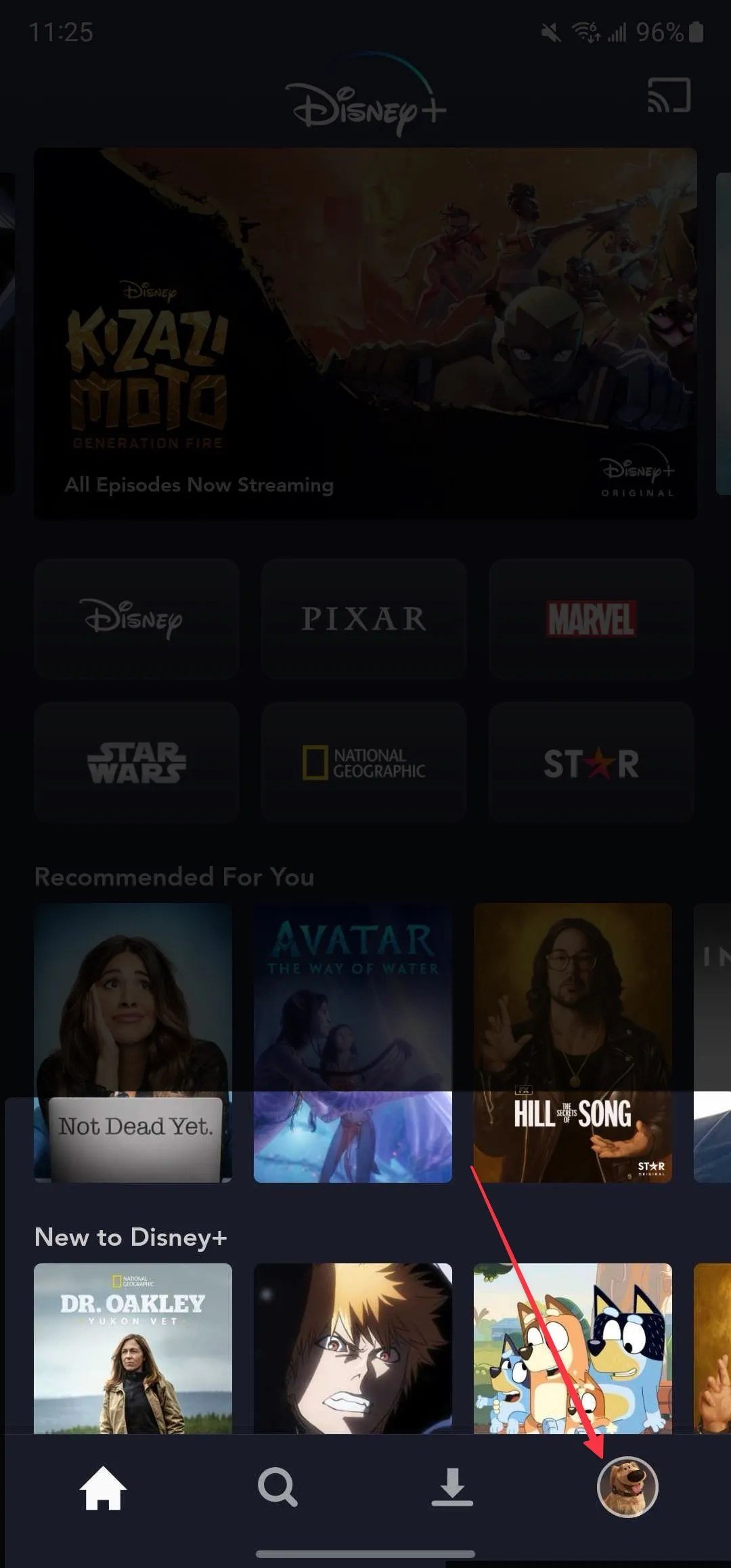
- Go to your Profile Icon in the top-right corner.
- Select Account.
- Under the "Subscription" section, you'll see your current plan details, including the type, billing date, and associated cost.
Navigating Billing & Payment Methods
Few things are more frustrating than a streaming interruption due to a payment issue. Keeping your payment information current is a simple but vital task.
Updating Your Payment Method:
- Again, head to the Disney+ website and log in.
- Click on your Profile Icon and select Account.
- Under the "Subscription" section, click on your current subscription plan.
- Look for an option to Change Payment Method or Update Billing Info.
- Enter your new credit card, debit card, or PayPal details and save.
Troubleshooting Payment Issues:
If a payment fails, Disney+ will usually notify you via email. Common reasons include:
- Expired Card: The most frequent culprit. Ensure your card's expiration date is up to date.
- Insufficient Funds: Check your bank balance.
- Incorrect Information: Double-check the card number, CVV, and billing address.
- Bank Restrictions: Sometimes banks flag recurring charges as potential fraud. A quick call to your bank can often resolve this.
- Third-Party Billing: If you subscribed through a third party (like Apple, Google Play, Roku, or a mobile carrier), you'll need to manage your payment method directly through their platform, not Disney+'s website.
Making Changes: Upgrades, Downgrades, Bundles
Your viewing needs might evolve. Maybe you want to ditch the ads, or perhaps a bundle now makes more sense.
To Change Your Plan (Upgrade or Downgrade):
- Log in to your Disney+ account on a web browser.
- Go to Account from your profile menu.
- Under "Subscription," select your current plan.
- You should see options to switch to other available plans (e.g., from Basic to Premium).
- Follow the prompts to confirm your new plan. The change usually takes effect at the start of your next billing cycle.
Adding or Modifying Bundles:
If you initially signed up for Disney+ directly, you might be able to add a bundle through your account settings. However, if you already have a bundle through another provider (e.g., Hulu), managing or changing that bundle usually happens on the primary service's website where the bundle originated. Always check your account on the service you initially subscribed through.
Taking a Break: Pausing or Canceling Your Subscription
Sometimes you need a pause, or perhaps you've binged everything and want to come back later. Disney+ makes it straightforward to manage this.
Canceling Your Disney+ Subscription:
- Log in to your Disney+ account on a web browser.
- Click on your Profile Icon and select Account.
- Under "Subscription," click on your current plan.
- Select the option to Cancel Subscription.
- You may be asked to provide a reason for canceling.
- Confirm your cancellation. You'll receive an email confirmation.
Important Note: Even after canceling, you'll typically have access to Disney+ content until the end of your current billing period. If you subscribed through a third party (Apple App Store, Google Play, Amazon, Roku, etc.), you must cancel directly through that platform. Disney+ customer service cannot cancel third-party subscriptions.
Pausing Your Subscription:
Currently, Disney+ does not offer a "pause" feature in the same way some other streaming services do. If you want to take a break, your best option is to cancel and then resubscribe when you're ready to return. Resubscribing is generally quick and easy, and your profiles and watch history usually remain intact for a period.
Crafting Your Personal Viewing Spaces: Profile Management
One of the best features of Disney+ is the ability to create multiple user profiles. This isn't just a convenience; it's essential for a personalized and family-friendly streaming experience.
Why Profiles Matter: Personalization & Control
Profiles allow each viewer to have their own:
- Watch History: Keep track of what you've seen and what's next.
- Recommendations: Get suggestions tailored to your viewing habits, not everyone else's.
- Watchlist: Save movies and shows you want to watch later.
- Autoplay Settings: Decide if the next episode should start automatically.
- Maturity Ratings (for Kids Profiles): Crucial for parental control.
This means no more fighting over where someone left off in The Mandalorian or having your Marvel recommendations skewed by your child's endless Bluey binge.
Creating New Profiles: A Step-by-Step Guide
You can create up to 7 profiles on a single Disney+ account.
- From the Disney+ home screen, click on Who's Watching? or select your Current Profile Icon.
- Click on Add Profile (often represented by a "+" icon).
- Choose an Avatar: Select from a vast collection of Disney, Pixar, Marvel, Star Wars, and National Geographic characters.
- Enter a Profile Name: Make it unique!
- Toggle Kids Profile (Optional): If this profile is for a child, switch on the "Kids Profile" option. This will automatically filter content to G, PG, and TV-Y7 ratings. You can further customize this in parental controls.
- Click Save.
That's it! The new profile will appear on the "Who's Watching?" screen.
Customizing Profiles: Icons, Names, Autoplay Settings
Make each profile truly your own.
To Edit an Existing Profile:
- From the Disney+ home screen, click on Who's Watching? or your Current Profile Icon.
- Select Edit Profiles.
- Click on the profile you wish to modify.
- Here, you can:
- Change Avatar: Pick a new character icon.
- Change Profile Name: Update the name.
- Toggle Autoplay: Turn autoplay for the next episode on or off.
- Toggle Background Video: Decide if background videos should play on the home screen.
- Manage Parental Controls: Adjust maturity ratings and PINs (more on this below).
- Toggle Kids Profile: Switch a standard profile to a Kids Profile or vice-versa.
- Click Done or Save to apply changes.
The Power of Kids Profiles: Safe Viewing for Little Ones
Kids Profiles are a game-changer for families. When activated, they automatically restrict content to appropriate maturity ratings (usually TV-Y, TV-Y7, G, PG) and only display content approved for younger viewers.
Setting Up and Managing Kids Profiles:
- When creating or editing a profile, simply toggle the Kids Profile option to "On."
- By default, Kids Profiles often have a reduced content library.
- For even finer control, you can utilize the Content Rating setting within the Parental Controls for that specific profile. This allows you to select the highest maturity rating a profile can access, from TV-Y to TV-MA.
Important Note on Content Ratings: Disney+ now offers robust content rating controls. For any profile (not just Kids Profiles), you can set a specific maturity rating limit. This means you can create a "Teen Profile" that can only access content up to TV-14, preventing accidental viewing of TV-MA content. This is a powerful tool for All About Disney Accessibility and making sure content is appropriate for all ages in your home.
Deleting or Managing Existing Profiles
Sometimes profiles are no longer needed, or you might hit the 7-profile limit.
To Delete a Profile:
- From the Disney+ home screen, click Who's Watching? or your Current Profile Icon.
- Select Edit Profiles.
- Click the red X or the delete icon next to the profile you wish to remove.
- Confirm the deletion.
Important Considerations:
- Deleting a profile is permanent; its watch history, watchlist, and recommendations will be lost.
- You cannot delete the primary account profile (the one associated with the main account holder) without canceling the entire subscription.
Sharing Your Disney+ Magic Responsibly
Disney+ is designed for family sharing, but there are practical limits and best practices to keep your account secure and running smoothly.
Understanding Simultaneous Streams
Disney+ allows for up to 4 simultaneous streams per account. This means four different devices can be watching different shows or movies at the exact same time. If a fifth device tries to stream, it will typically receive an error message.
- Tip: If you're consistently hitting this limit, check your "Manage Devices" section (accessible via your Account page) to see if you're logged in on devices you no longer use or recognize.
The "Who's Watching?" Dilemma: Best Practices for Shared Accounts
When multiple people use the same account (even within the same household), a clear strategy helps.
- Assign Profiles Clearly: Ensure everyone knows which profile is theirs to avoid mixing watch histories.
- Educate on Kids Profiles: Teach children to always select their Kids Profile to ensure they stay within appropriate content boundaries.
- Communication is Key: If you're sharing with a friend or family member outside your immediate household (which technically goes against Disney+'s terms of service, but many do), make sure everyone understands the simultaneous stream limit to avoid frustration.
Managing Devices & Logins: Security First
Your Disney+ account can be logged into many devices, but you'll want to keep tabs on them for security.
Removing Devices:
- Log in to your Disney+ account on a web browser.
- Go to your Profile Icon and select Account.
- Under the "Security" or "Settings" section (this naming can vary slightly), look for Manage Devices or Log Out All Devices.
- You can often see a list of logged-in devices. Select Log Out All Devices to sign out every device except the one you're currently using. This is a good practice if you suspect unauthorized access or have sold/given away old devices.
Changing Your Password:
Regularly changing your password, or immediately changing it if you suspect a breach, is vital. - From your Account page on the Disney+ website.
- Look for "Change Password" under the "Account Details" or "Security" section.
- Follow the prompts, entering your current password and then your new, strong password.
Enabling Two-Step Verification:
For enhanced security, consider enabling two-step verification if Disney+ offers it in your region. This adds an extra layer of protection, usually requiring a code sent to your phone or email in addition to your password when logging in from a new device. Check your account settings for this option.
Troubleshooting Common Subscription & Profile Issues
Even with the best management, sometimes things go awry. Here's how to tackle frequent hiccups.
Payment Problems? Here's What to Check
If your payment failed or your subscription was suspended:
- Review Payment Method: As discussed, ensure your credit card, debit card, or PayPal details are up-to-date and correct on your Disney+ account or the third-party platform you used to subscribe.
- Check Funds: Confirm there are sufficient funds available on your selected payment method.
- Contact Your Bank: If the issue persists, your bank might be blocking the transaction. Call them to authorize the payment.
- Confirm Subscription Status: On your Disney+ Account page, check the "Subscription" section to see if your plan is active or has been suspended.
Can't Access Content? Profile Glitches & Solutions
If you or someone in your household can't watch something you expect to see, consider these possibilities:
- Incorrect Profile Selected: Ensure the correct profile is active. Kids Profiles will filter out mature content.
- Parental Controls: Check the parental control settings for the specific profile. Has a content rating been set too restrictively? The main account holder can adjust these settings via the "Edit Profiles" section.
- Regional Restrictions: Some content might not be available in all geographical regions due to licensing agreements.
- Technical Glitch: Sometimes a simple app restart, device reboot, or clearing your browser cache can resolve temporary issues.
- Device Limits: Remember the 4 simultaneous stream limit. If you're hitting it, someone might need to stop watching.
Forgotten Passwords & Account Recovery
It happens to the best of us.
- On the Disney+ login page, click Forgot Password?
- Enter the email address associated with your Disney+ account.
- Check your email for a password reset link. Follow the instructions to create a new password.
- If you don't receive the email, check your spam/junk folder. Ensure you're using the correct email address for your account.
Maximizing Your Disney+ Journey
Beyond the basics, a few extra tips can enhance your overall Disney+ experience.
Hidden Features & Settings to Explore
- Download Content: For ad-free subscribers, download movies and shows to watch offline, perfect for travel. Look for the download icon (a down arrow) on content pages.
- Watchlist Management: Keep your watchlist tidy! Remove content you've watched or decided not to see.
- Autoplay for Trailer: In profile settings, you can toggle off "Background Video" if you prefer a static image on the home screen.
- Closed Captioning & Audio Options: During playback, access settings for subtitles, audio language, and descriptive audio. This is particularly useful for those who benefit from enhanced accessibility features.
Leveraging Parental Controls Beyond Kids Profiles
While Kids Profiles offer a quick solution, the granular parental controls available on standard profiles are very powerful.
- Content Rating: For any profile, you can set the maximum content rating allowed (TV-Y, TV-G, G, TV-PG, PG, PG-13, TV-14, R, TV-MA). This is perfect for tweens or teens who might not need a full Kids Profile but still require some content moderation.
- Profile PIN: Set a 4-digit PIN for any profile to prevent unauthorized access. This means only those who know the PIN can switch to or use that specific profile, even if they're already logged into the main account. This is particularly useful for profiles with higher maturity ratings or for parents to protect their own viewing preferences.
- Account-Level PIN: You can also set an account-level PIN, which requires entry before accessing the entire Disney+ service from a new device, adding a powerful layer of security.
These controls give you unprecedented flexibility to tailor the viewing experience for every member of your family, ensuring everyone sees what's appropriate for them.
Connecting with Customer Support When You Need It
If you've tried troubleshooting and still can't resolve an issue, Disney+ customer support is ready to help.
- Help Center: The Disney+ Help Center (help.disneyplus.com) is a comprehensive resource for FAQs, guides, and common solutions.
- Live Chat: Often the quickest way to get real-time assistance. Look for the "Live Chat" option on the Help Center page.
- Phone Support: For more complex issues, phone support allows for direct conversation. You'll usually find the phone number listed in the Help Center.
When contacting support, be prepared with your account email address, a clear description of the issue, and any steps you've already taken to troubleshoot.
Your Next Steps to Seamless Disney+ Enjoyment
You've now got the playbook for mastering your Disney+ subscription and profiles. Take a moment to:
- Review Your Account: Log in, check your plan, billing cycle, and ensure your payment method is current.
- Audit Your Profiles: Are there any old profiles you can delete? Are new ones needed?
- Optimize Parental Controls: Confirm Kids Profiles are active for younger viewers and consider setting content ratings or PINs for older children or even your own profile for added privacy.
- Practice Device Management: If you've logged in on many devices over time, a quick "log out all devices" and then re-login on current devices can be a good security refresh.
By proactively managing these aspects, you'll ensure your Disney+ experience remains magical, secure, and perfectly tailored for everyone watching. Enjoy the stories!